Doodle
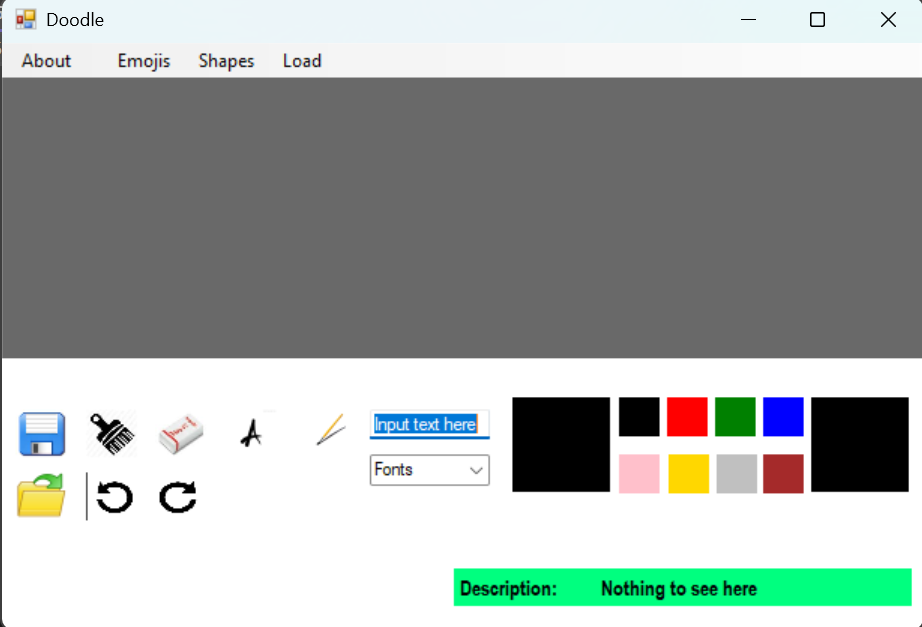
A digital drawing application that allows users to create, edit, and save artwork. The project focused on interactive interface design, tool functionality, and user experience.
Project type: Individual
Tools used

C#

Visual Studio
Drawing App
Normal mode contains the 4 main operations: plus, minus, multiply, divide, while scientific mode contains more functions such as logarithms, square root, trigonometric functions etc.
Shapes
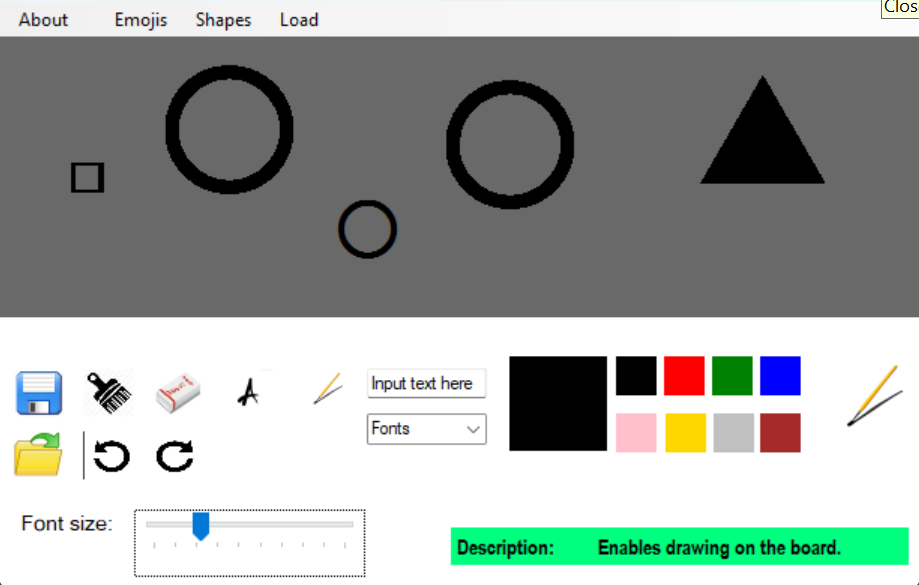
Users can insert shapes that are available For example: Through the use of the shapes tab and the size selector, they can insert any of the shapes provided. I aim to add more shapes in the future so users are able to be more creative in their drawings/designs..
Description
For first-time users, the description provides a clear overview of the button’s function and its expected behavior.
 Load button
 Enable button
 Paste button
 Undo button
Fonts and Text
Users can add text to the drawing board by typing it into the provided text box and then selecting their preferred font and size.
Users must first select the text option before being able to paste the text onto the drawing board.
The Backbone
Beyond the interface, this drawing app relies on clear, structured logic. The following snippets show how I handled input processing, pasting of shapes/text and complex operations.
Loading images from
library
This feature allows users to draw directly on imported images. To enable this, the PNG image is converted into a bitmap, which supports drawing. I had the most trouble with this because without converting to a bitmap, users cannot draw anything onto the image. Through this, I learnt to stay calm and solve problems, step by step.
private void picBoxLoad_Click(object sender, EventArgs e)
{
picBoxToolPic.Image = picBoxLoad.Image;
lblTexts.Text = "Loads image files from the library.";
using (OpenFileDialog ofd = new OpenFileDialog())
{
ofd.Title = "Load Dialog";
ofd.Filter = "JPEG files(*.jpeg)|*.jpeg| Image Files (*.BMP)|*.BMP| All files (*.*)|*.*";
if (ofd.ShowDialog() == DialogResult.OK)
try
{
Bitmap loadImage = new Bitmap(ofd.FileName);
g = Graphics.FromImage(bm);
g.DrawImage(loadImage, 0, 0, bm.Width, bm.Height);
picBoxMain.Image = bm;
}
catch (Exception ex)
{
MessageBox.Show("Error loading image: " + ex.Message);
}
}
}
Undo and Redo
The undo and redo buttons are essential features in a drawing app because mistakes are common when drawing. They allow users to easily correct errors, helping them maintain accuracy and precision in their drawings. From this addition, I improved my skills on user experience and creativity, allowing users to have a better time using this drawing app.
private void picBoxUndo_Click(object sender, EventArgs e)
{
lblTexts.Text = "Undo last drawing";
if (undoStack.Count > 0)
{
redoStack.Push((Bitmap)bm.Clone()); // saves the current state for redo
bm = (Bitmap)undoStack.Pop(); // restores previous state
g = Graphics.FromImage(bm);
picBoxMain.Image = bm; // updates picBoxMain
}
}
private void picBoxRedo_Click(object sender, EventArgs e)
{
lblTexts.Text = "Reapplies last drawing";
if (redoStack.Count > 0)
{
undoStack.Push((Bitmap)bm.Clone());
bm = (Bitmap)redoStack.Pop();
g = Graphics.FromImage(bm);
picBoxMain.Image = bm;
}
}
Pasting of shapes/emojis
The code below allows users to paste any shapes or emojis that they have selected onto the drawing board.
if (flagEmoji)
{
g = Graphics.FromImage(bm);
Font emojiFont = new Font("Segoe UI Emoji", scrollSize.Value * 5);
SolidBrush emojiBrush = new SolidBrush(pen.Color);
g.DrawString(emoji, emojiFont, emojiBrush, startP.X, startP.Y);
g.Dispose();
picBoxMain.Invalidate();
}
flagEmoji = false; // Reset so it doesn't draw again
if (flagShapes)
{
g = Graphics.FromImage(bm);
Font shapeSize = new Font("Segoe UI Shapes", scrollSize.Value);
SolidBrush emojiBrush = new SolidBrush(pen.Color);
g.DrawString(shapes, shapeSize, emojiBrush, startP.X, startP.Y);
g.Dispose();
picBoxMain.Invalidate();
}
flagShapes = false;
}
Save button
All efforts are wasted if users cannot save their work. To tackle this, I included a save button, allowing users to save their work as a bitmap and revisit or edit it later. A dialog box will appear after the file has been successfully saved. Implementing this reinforced my knowledge on file handling, event-driven programming, and user interface design.
private void picBoxSave_Click(object sender, EventArgs e)
{
picBoxToolPic.Image = picBoxSave.Image;
lblTexts.Text = "Saves the current drawing on the board.";
paint = false;
using (SaveFileDialog sfdlg = new SaveFileDialog())
{
sfdlg.Title = "Save Dialog";
sfdlg.Filter = "Image Files (*.BMP)|*.BMP| JPEG files(*.jpeg)|*.jpeg| GIF files(*.GIF)|*.GIF| All files (*.*)|*.*";
if (sfdlg.ShowDialog(this) == DialogResult.OK)
{
using (Bitmap bmp = new Bitmap(picBoxMain.Width, picBoxMain.Height))
{
Rectangle rect = new Rectangle(0, 0, bmp.Width, bmp.Height);
picBoxMain.DrawToBitmap(bmp, rect);
bmp.Save(sfdlg.FileName, System.Drawing.Imaging.ImageFormat.Bmp);
MessageBox.Show("File saved successfully");
}
}
}
}

Final Thoughts
Lessons Learned and Insights Gained: Challenges, Skills, and Growth from This Project
Lessons learnt
-
- This was the second windows app that I have coded, so I already had some idea of how the code works. Though it made life a little easier, there were still hardships ahead.
-
- The requirement to draw on an imported image was the first challenge that I faced. As the imported image was in the PNG format, a conversion to bitmap format was needed before any drawings could occur. This led to some head scratching and countless hours of research.
-
- Naturally, the app had to be visually appealing too. I took inspiration from the drawing app on windows and added elements which I thought would be useful. It was fun,but tough trying to think of creative designs. As a person who is not creative, thinking out of the box was a new but fulfilling experience.
-
- Overall, I am very happy to be able to complete this project and produce a drawing app that I am proud of.
Skills demonstrated
- Software Testing & Optimization: : Ensured smooth performance for real-time drawing without lag.
- File Management & Data Handling: Created save/load features to manage user-created drawings.
Technical Skills
-
- Time Management: Planned and completed all tasks, from research to presentation, within deadlines.
- Problem-Solving for User Experience:: Addressed interface issues and optimized workflow for seamless interaction.
- Critical Thinking: Assessed design choices to ensure both functionality and aesthetic coherence; not too complicated but still advanced.
- Attention to User-Centric Design: Focused on making the app easy and enjoyable to use.