Calculator
Developed a functional calculator application using Visual Studio, featuring a clean interface and reliable arithmetic operations.
Project type: Individual
Tools used
C#

Visual Studio
Normal/Scientific Mode
Normal mode contains the 4 main operations: plus, minus, multiply, divide, while scientific mode contains more functions such as logarithms, square root, trigonometric functions etc.
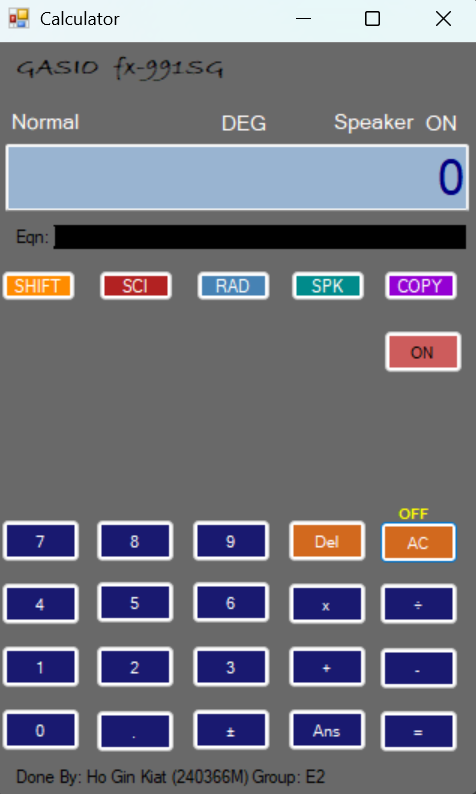 Normal
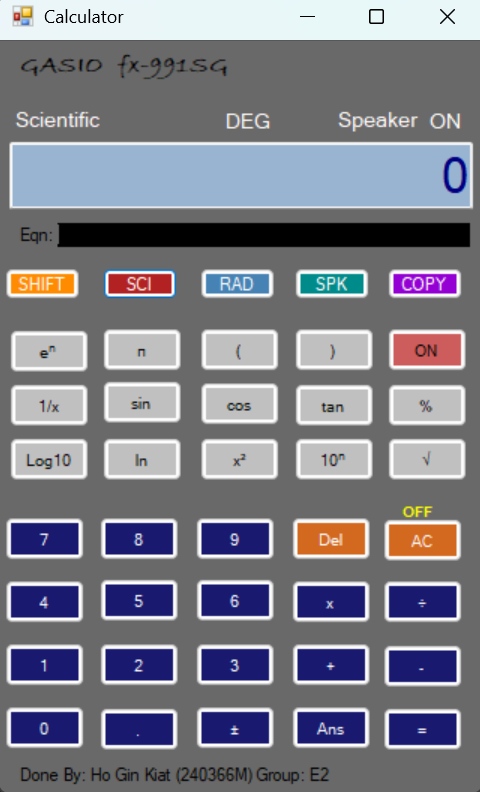 Scientific
Off/On button
To off the calculator, the shift button is pressed, followed by the AC. This will render all buttons inactive and nothing will happen if the user presses them.
To turn on the calculator, the user would simply just press the 'ON' button.
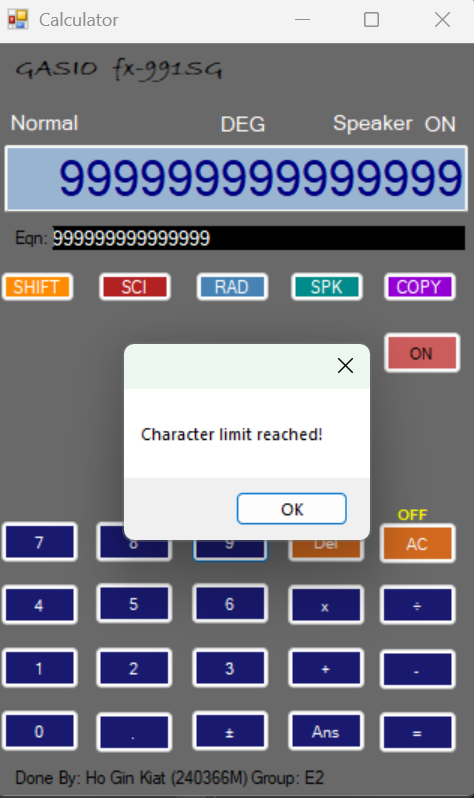
Character limit
Once the number fills all the available space in the window, a popup will alert the user that the character limit has been reached.
This prevents accidental key presses that the user may not notice from being included in the calculations.
Sound effects
To simulate as close to a real calculator, I have added sounds when the user presses any buttons, and a voice-over when the 'AC' button is pressed.
There is an option to disable the voiceover should it get disruptive in the long run.
(Click on the sound option below!)
The Backbone
Beyond the interface, this calculator relies on clear, structured logic. The following snippets show how I handled input processing, arithmetic operations, and display updates.
Character limit
This is essential for a calculator because, without an input limit, users could enter infinitely long numbers. I initially overlooked this issue, but correcting it ensures the calculator produces valid results. Through this, I've learnt to anticipate user actions, implement quality assurance measures and design more reliable applications.
if (txtResults.Text.Length == 15)
{
MessageBox.Show("Character limit reached!");
return;
}
Keyboard detection
The calculator can detect inputs from the keyboard, allowing users to type numbers and operations directly instead of clicking each button manually. This not only improves efficiency but also enhances the user experience by providing flexibility in how the calculator can be used. Through this feature, I strengthened my skills in event handling, user interface design, and enhancing usability, allowing user experience to be simpler and efficient.
private void Form1_Keys(object sender, KeyEventArgs e)
{
switch (e.KeyCode)
{
case Keys.D0:
btn0.PerformClick();
break;
case Keys.D1:
btn1.PerformClick();
break;
case Keys.D2:
btn2.PerformClick();
break;
case Keys.D3:
btn3.PerformClick();
break;
case Keys.D4:
btn4.PerformClick();
break;
case Keys.D5 when !e.Shift:
btn5.PerformClick();
break;
case Keys.D6:
btn6.PerformClick();
Button toggle
To make the calculator toggle between scientific and radians using the same button, I made use of the modulus operator. The first time the button is pressed, the remainder will be 1, and the second time pressed, it will be 0. The remainder only toggles between 0 and 1 no matter how many time it is pressed.
private void degRadBtn_Click(object sender, EventArgs e)
{
PlaySound();
System.Windows.Forms.Button btn = (System.Windows.Forms.Button)sender;
counterdegrad++;
if (counterdegrad % 2 != 0)
{
degRadBtn.Text = "DEG";
degraLbl.Text = "RAD";
}
else
{
degRadBtn.Text = "RAD";
degraLbl.Text = "DEG";
}
}
Full Equation Display
Through the use of the tag/text attached with the buttons, I made it possible to display the full equation so that the user is able to see what they have calculated from start to finish. This is implemented for all buttons, and below is an example of how it is coded for all buttons.
@txtEqu.Text += btn.Text;

Final Thoughts
Lessons Learned and Insights Gained: Challenges, Skills, and Growth from This Project
Lessons learnt
-
- This was the first windows forms app I coded, and to be completely honest, I really enjoyed every second of it.
-
- It was challenging, no doubt. For example, I couldn't think of a way to make the buttons toggle, and I was starting to lose hope. However, I persevered and researched for answers till I made it work.
-
- This project also had elements of design contained. Users would prefer a visually appealing calculator rather than a plain old calculator, because an attractive interface makes the experience more engaging and intuitive. Focusing on design helped me understand that usability isn’t just about functionality, it’s also about how comfortable and enjoyable it is for users to interact with the tool.
-
- Overall, I am very happy to be able to complete this project and produce a calculator that I am proud of. This experience not only strengthened my coding skills but also taught me the importance of combining functionality, usability, and design to create an effective software tool.
Skills demonstrated
- Coding / Programming: : Developed all calculator functions using C# in Visual Studio.
- Interface Design: UCreated a clear, user-friendly interface for ease of use.
- Testing & Debugging:implemented input validation and resolved errors to ensure smooth functionality.
Technical Skills
-
- Time Management: structured development steps from planning to testing, completing the project within the intended timeline.
- Independent Research: Analyzed popular bubble tea websites, customer preferences, and design trends to make informed design decisions.
- Critical Thinking: Learned new programming techniques to implement features effectively.
- Keeping cool: This project was tough, and keeping a cool head and figuring out problems was essential.